


Description
Download NTFS Undelete – Free File Recovery Tool for Windows (Secure, Fast, Portable)
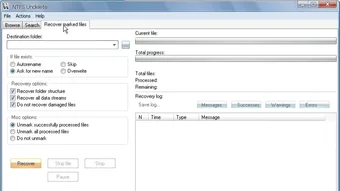
NTFS Undelete is a powerful, free file recovery utility designed specifically for Windows users who have accidentally deleted important files or lost data due to system crashes, formatting errors, or accidental formatting. This reliable software helps recover files from NTFS-formatted drives, including internal hard drives, external USB devices, SD cards, and more. With its three flexible deployment options—installation package, ISO image for CD/DVD recovery, and portable ZIP version—NTFS Undelete offers maximum accessibility for users at home, in the office, or on the move. The tool supports file masks to speed up recovery searches and includes an advanced search mode with filters for file size, creation date, and extension. For optimal results, it’s recommended to save recovered files to a different drive to avoid overwriting the original data. Whether you're recovering a family photo, a work document, or a critical project file, NTFS Undelete delivers a secure, user-friendly solution.
Why NTFS Undelete Stands Out Among Free Recovery Tools
When it comes to file recovery on Windows systems, many users turn to third-party tools, but few offer the combination of simplicity, speed, and reliability that NTFS Undelete provides. Unlike many paid alternatives, this software is completely free to download and use, making it accessible to everyone—from casual users to IT professionals. One of the standout features is its multi-format deployment: you can choose between a standard installer for regular use, a bootable ISO image for recovering data from unbootable systems, or a portable ZIP version that runs directly from a USB drive without installation. This flexibility ensures that no matter your situation—whether your system has crashed, your drive is corrupted, or you simply deleted a file by mistake—there’s a version of NTFS Undelete ready to help. The interface is clean and intuitive, with clearly labeled buttons and real-time progress tracking, so even non-technical users can navigate the recovery process with confidence. The software performs deep scans on selected drives, searching for deleted file entries in the Master File Table (MFT), which is critical for NTFS recovery. It supports a wide range of file types, including documents, photos, videos, audio files, archives, and more. What sets it apart is its advanced search functionality: users can apply file masks (like *.docx or *.jpg) to narrow results, or use the advanced mode to filter by file size, date created, or file name patterns. This dramatically reduces recovery time and helps locate the exact file you need faster. Additionally, the software is lightweight and doesn’t consume excessive system resources, ensuring it runs smoothly even on older machines.How to Use NTFS Undelete: Step-by-Step Installation & Recovery Guide
Getting started with NTFS Undelete is straightforward, regardless of which version you choose. If you’re using the installation package, simply download the .exe file from the official website, run it, and follow the on-screen prompts. The installer is quick and installs only the essential components, keeping your system clean. Once installed, launch the application and select the drive you want to scan—this could be your C: drive, an external USB stick, an SD card, or even a network drive if accessible. The software will begin scanning the selected drive using a deep search algorithm that examines the MFT and unallocated space for deleted file signatures. During the scan, you can pause or stop the process if needed, and the tool will display a progress bar along with estimated time remaining. After the scan completes, a list of recoverable files appears, organized by file type and location. You can preview files (where supported) to confirm they’re the correct ones before recovery. To avoid overwriting the original data, it’s crucial to choose a different storage location—such as another drive or folder—to save the recovered files. This precaution prevents the risk of overwriting still-recoverable data. For users who need to recover files from a non-bootable system, the ISO image version is ideal. Burn the ISO to a CD/DVD or create a bootable USB drive using tools like Rufus, then boot your computer from it. Once in the recovery environment, NTFS Undelete runs independently of the operating system, allowing access to corrupted or inaccessible drives. The portable version, packed in a ZIP file, is perfect for emergency use. Simply extract the files to a USB drive, plug it into the affected computer, and run the executable directly—no installation required. This makes it a go-to tool for on-the-go data rescue.Compatibility, Features & Technical Advantages
NTFS Undelete is specifically designed for Windows environments and supports all major versions, including Windows 10, Windows 11, Windows 8.1, and Windows 7 (with updates). It works seamlessly on both 32-bit and 64-bit systems, ensuring broad compatibility across different hardware setups. The software is optimized for NTFS-formatted drives, which are standard on most Windows PCs, making it highly effective for common data loss scenarios. While it’s not designed for exFAT or FAT32 drives, it excels in recovering files from NTFS partitions that have been accidentally formatted, corrupted, or wiped. The tool’s feature set is impressive for a free application: it supports file masks for targeted recovery (e.g., *.pdf), advanced search filters (by size, date, name), and a built-in preview function for common file types like images and documents. It also handles large drives efficiently, with minimal performance impact during scanning. One of the technical strengths of NTFS Undelete is its ability to recover files even after the drive has been reformatted—provided the data hasn’t been overwritten. This is due to its deep MFT analysis and signature-based file detection. The software also includes a simple but effective recovery log, which tracks the last scan and recovery attempts. For users concerned about security, the tool operates entirely offline and does not collect or transmit any personal data. All operations are performed locally on your machine, ensuring your privacy and data integrity. The fact that it’s free, lightweight, and regularly updated makes it a trustworthy choice for both personal and professional use. Whether you’re recovering a single file or an entire folder, NTFS Undelete delivers consistent, reliable results without the need for technical expertise.Pros, Cons & Frequently Asked Questions
- Pros:
- Completely free to download and use
- Multiple deployment options: installer, ISO, portable ZIP
- Fast and accurate recovery from NTFS drives
- Advanced search with file masks and filters
- Lightweight and low system resource usage
- Supports file previews and deep MFT scanning
- Safe recovery with no risk of overwriting original data
- Regular updates and active development
- Cons:
- Only supports NTFS-formatted drives (not FAT32/exFAT)
- No built-in backup or scheduling features
- Limited support for non-Windows systems
- Advanced features are not available in the portable version
- Doesn’t recover files from heavily fragmented or damaged drives
Frequently Asked Questions (FAQ)
- Can NTFS Undelete recover files after formatting?
- Yes, NTFS Undelete can recover files even after a drive has been formatted, provided the data hasn’t been overwritten. It scans the MFT and unallocated space for file signatures, making recovery possible in many cases.
- Is NTFS Undelete safe to use on my system?
- Yes, NTFS Undelete is safe. It runs as a standalone tool and does not modify the original drive during scanning. As long as you save recovered files to a different drive, there’s no risk of data loss.
- Can I use the portable version on a Mac?
- No, the portable version is designed for Windows only. It cannot run on macOS or Linux systems.
- How long does a scan take?
- Scan time depends on the drive size and speed. A 1TB drive may take 30–60 minutes, while smaller drives are scanned in minutes. The software shows real-time progress.
- Does NTFS Undelete support SSDs?
- Yes, it works with SSDs, but keep in mind that TRIM commands may make recovery more difficult if they’ve been enabled. It’s best to stop using the drive immediately after deletion.
Final Verdict: Is NTFS Undelete Worth Downloading?
NTFS Undelete is one of the most reliable, free file recovery tools available for Windows users. With its powerful scanning engine, multiple deployment options, and user-friendly interface, it delivers excellent value without any cost. Whether you’re recovering a single document or an entire photo library, this software provides fast, secure, and effective results. Its focus on NTFS drives ensures high success rates in common data loss scenarios. While it has some limitations—such as no support for non-NTFS drives or Mac systems—it excels in its intended purpose. For anyone who has ever lost important files due to accidental deletion or system errors, NTFS Undelete is a must-have tool. Download it today and protect your data with confidence.
Download NTFS Undelete now and recover your lost files—fast, free, and secure.
Guides & Tutorials for NTFS Undelete
How to install NTFS Undelete
- Click the Preview / Download button above.
- Once redirected, accept the terms and click Install.
- Wait for the NTFS Undelete download to finish on your device.
How to use NTFS Undelete
This software is primarily used for its core features described above. Open the app after installation to explore its capabilities.
User Reviews for NTFS Undelete 0
No reviews found





